Dell Monitor Not Working: How to Fix Display Issues
Use the firmware and/or drivers update advice on this page at your own risk; we are not responsible for any damage or malfunction to your hardware resulting from following our recommendations.
If you're facing a display issue on your Dell monitor in which one or more of your screens just show a black screen when trying to connect, the first thing to do is to test with another monitor. If possible, try a different monitor to determine if the issue lies with the monitor itself.
Check the Cables & Placement
If you don't have access to an additional monitor, try checking the cables and the position of the video card. The video card should be placed just under the fan of your PC. In some cases, all it needs is a simple dust cleaning of all the PC components.
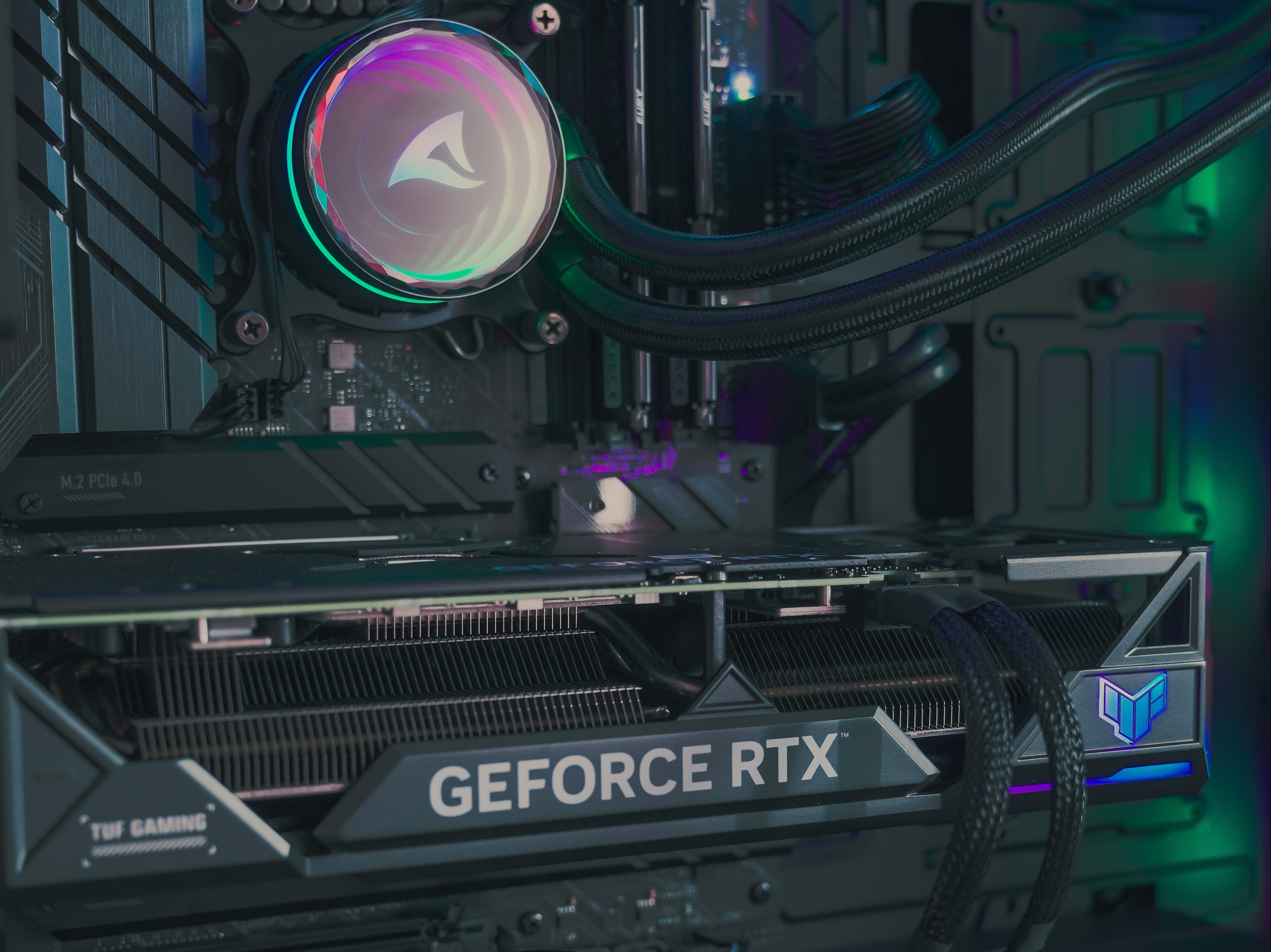
Onur Binay on Unsplash
Once you clean everything and make sure there’s no visible damage on the video card such as cracks or dents, check the video ports. You should check both video ports on the computer and the monitor. There is a possibility that the pins are bent as well. If there is any damage to the cords or the ports, the best way to resolve the monitor issue is by replacing the damaged parts.
However, if there's no visible damage to the parts and the Dell monitor keeps malfunctioning or shutting down, the issue may lie in the outdated video drivers, or the type of the graphic card.
How to Replace Video Drivers
The Dell monitors may not be able to function correctly due to the video drivers needing an update. Relentless of which graphic/video card they own, Windows users can locate the video/graphic driver via Device Manager and replace it manually.
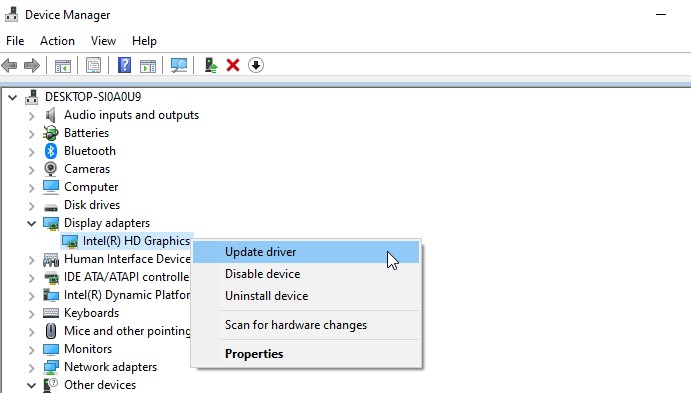
In order to do this, you’ll need to download the corresponding graphic driver for your graphic card. For example, if you’re using an Intel graphic card, you’ll find the driver by browsing graphic drivers on Intel’s website.
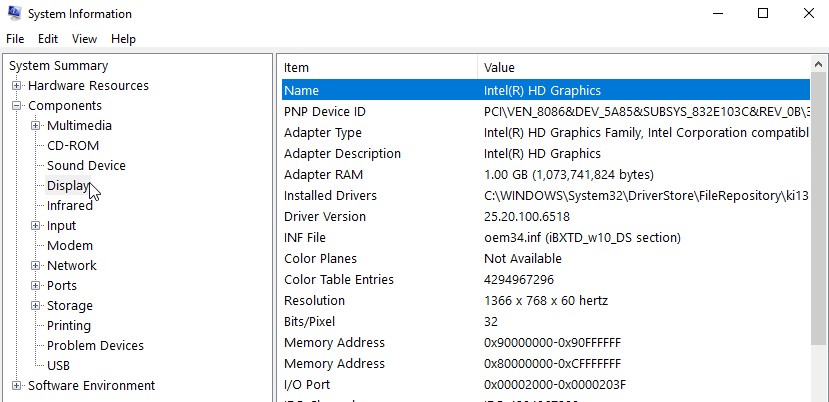
Before you find the driver you need, you’ll need the full name of your graphic card. Enter the System Information window by typing System Information into the Windows search bar. Once it opens, select “Components”, and then select “Display”. You’ll find the graphic card’s name there, which you can use to find the corresponding video drivers.
Apart from Intel's graphics, many PC users have graphic cards manufactured by either NVidia or AMD. Here are the links to their pages:
- AMD Graphics Support Page: https://www.amd.com/en/support
- NVidia Drivers Page: https://www.nvidia.com/download/index.aspx
What Type of Graphic Card is Compatible with my PC?
This mainly depends on the PC model you own. For example, if you have a PC manufactured by Dell, their OptiPlex models are intentionally built with a lower power supply. In fact, many PC models on the market are not meant to be used for complex processes such as gaming, programming, or video editing, therefore, these are usually not compatible with more powerful graphic cards such as NVidia.
If you’re not sure whether or not your graphics card (GPU) is too strong for your processor (CPU) to handle, you can check this by opening the Bottleneck Calculator. After checking the PC information in the System Information window, input the full processor name, graphics card name, and screen resolution.
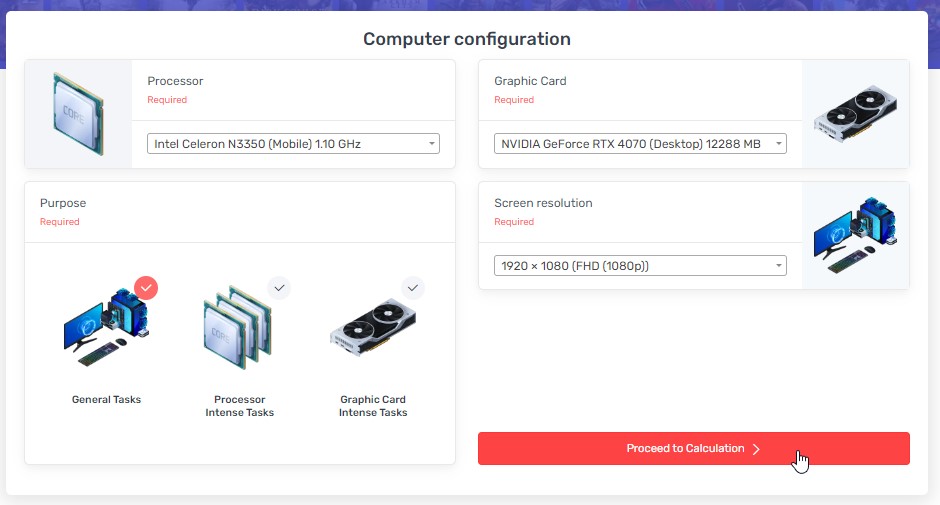
Once you enter the information, press “Proceed to Calculation”. The software will then calculate whether or not your PC can actually handle the graphic card. If the results are in the red zone, it means that it’s too powerful for your computer.
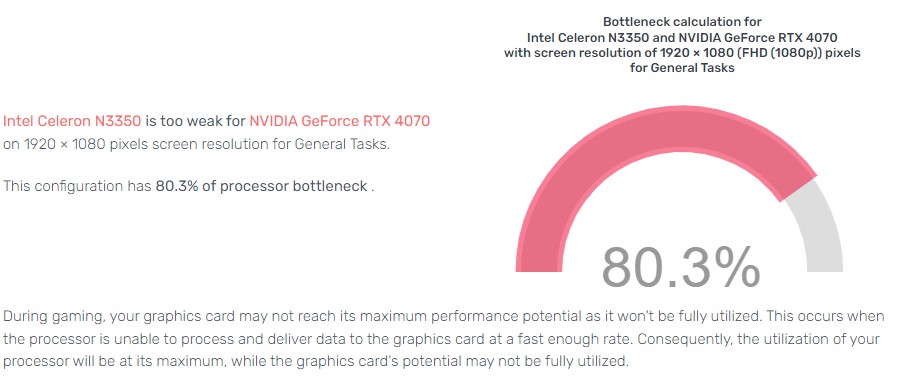
Downsizing the graphic/video card can also resolve the issues you may have experienced with your monitor.
- Scans your system for missing or outdated drivers
- Downloads and installs the correct versions
- Creates a restore point before making changes